Tablespace and Datafile: What Should You Check When Space Is Running Low?
When the system warns that a tablespace is nearly full, do we need to add a datafile or increase the file size immediately? Before deciding to add space, let's read the actual values in the system and distinguish what each number represents: actual usage, the current file size, or the maximum size the system allows it to reach.
When the system warns that a tablespace is nearly full, do we need to add a datafile or increase the file size immediately? Before deciding to add space, let's read the actual values in the system and distinguish what each number represents: actual usage, the current file size, or the maximum size the system allows it to reach.
Tablespace vs Datafile:
- Tablespace: A logical storage unit seen by applications and tables.
- Datafile: An actual data file stored in the operating system's storage (physical storage) or an ASM disk group. One tablespace can contain one or more datafiles.
(Note: The examples in this article read values from the USERS tablespace in a lab environment. The disk was not actually full.)
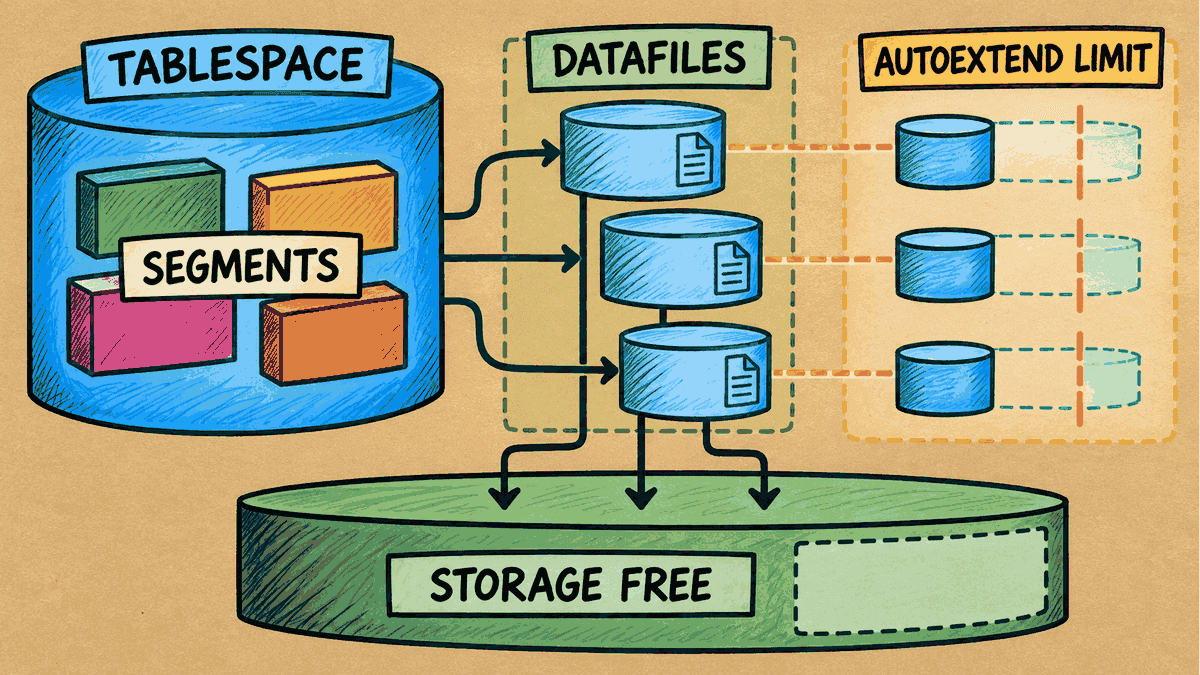
Concept illustration: This diagram shows the conceptual relationship. The number of files shown does not represent the lab, and the autoextend limit is not actual free storage space.
Step 1: Check the Usage Percentage (Usage Metrics)
With an account that has permission to read DBA views, you can check space usage through DBA_TABLESPACE_USAGE_METRICS as follows:
SELECT tablespace_name, used_percent
FROM dba_tablespace_usage_metrics
WHERE tablespace_name = 'USERS';
TABLESPACE_NAME      USED_PERCENT
-------------------- ------------
USERS                    0.033176

1 row selected.
Interpreting the results:
The USED_PERCENT value for USERS is 0.033176%. This view calculates the percentage relative to the maximum size the tablespace can grow to (including the autoextend limit), rather than the operating system's actual disk capacity. If the client rounds the result to one decimal place, it may display 0.0%. That does not mean the tablespace contains no data.
Step 2: Check File Size and Autoextend Settings
Convert bytes to MiB by dividing by 1024 twice to see the current file size and its maximum growth limit:
SELECT file_id,
       bytes / 1024 / 1024 AS size_mb,
       autoextensible,
       maxbytes / 1024 / 1024 AS max_mb
FROM dba_data_files
WHERE tablespace_name = 'USERS';
FILE_ID    SIZE_MB AUT     MAX_MB
------- ---------- --- ----------
     15         72 YES   33554432

1 row selected.
Interpreting the results:
FILE_ID15 has a current size (SIZE_MB) of 72 MiB.AUTOEXTENSIBLE(abbreviated toAUTin the client) showsYES, meaning the file can grow automatically as more data is added.MAX_MBis 33,554,432 MiB (or 32 TiB). This is the maximum size the file is configured to grow to.
Step 3: Distinguish the File's Limit from Actual Disk Space
Even when AUTOEXTENSIBLE is set to YES and MAXBYTES is very large, whether the file can actually grow also depends on factors beyond the database:
- Physical storage: The underlying OS filesystem, ASM disk group, or cloud storage must have actual free space available.
- PDB limits: In a multitenant architecture, an additional storage limit may be configured at the pluggable database (PDB) level.
Increasing MAXBYTES or enabling autoextend only changes a logical limit in the database. It does not create any actual disk space.
Step 4: Check Growth Trends Before Deciding What to Change (Best Practices)
When a space alert appears, work through these checks in order:
- Look for unusual growth: First, check whether any segment, table, or index is growing unusually quickly. For example, a batch process may have run without its data being purged afterward.
- If autoextend is disabled: Review the space management plan with the DBA to decide whether to resize an existing file or add a new datafile.
- If autoextend is enabled but has reached its limit (
MAXBYTES): Check whether the underlying storage (ASM / OS) still has enough free space. If physical disk space is running low, expand the disk group or underlying storage first. Simply changing a number in the database will not solve that problem.
Explore more Oracle topics in the Oracle articles on teeDBA.com.
Related articles

Can't Connect to Oracle: What Should You Check for Host, Port, and Service Name?
Why can't you connect to Oracle Database even though you're using the same connection details that worked before? What information should you send to your DBA for help? This article explains the roles of Host, Port, and Service Name, then uses SQL commands from a working session to confirm the services on the database side.
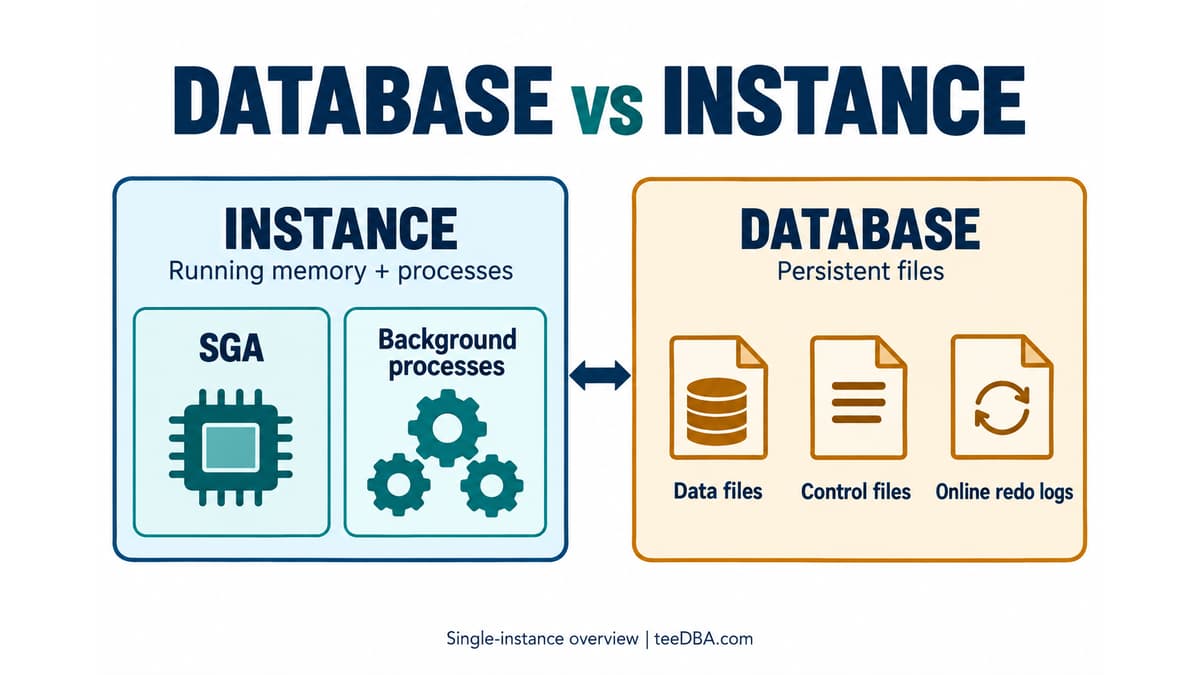
How Do an Oracle Database and an Instance Differ? See the Difference in One Diagram
Separate an Oracle Database's files from an Instance's memory and processes, then compare their status using v$instance and v$database.
Not Sure Where to Start with Oracle? Pick One Task
Not sure where to start with Oracle? Use three sample orders to practise SQL, then choose database and DBA topics that fit your work.