Can't Connect to Oracle: What Should You Check for Host, Port, and Service Name?
Why can't you connect to Oracle Database even though you're using the same connection details that worked before? What information should you send to your DBA for help? This article explains the roles of Host, Port, and Service Name, then uses SQL commands from a working session to confirm the services on the database side.
Why can't you connect to Oracle Database even though you're using the same connection details that worked before? What information should you send to your DBA for help? This article explains the roles of Host, Port, and Service Name, then uses SQL commands from a working session to confirm the services on the database side.
The main connection components:
- Host: The IP address or hostname of the destination database server on the network.
- Port: The port on which the Oracle Listener listens for connection requests (normally port 1521).
- Service Name: The name of the database or Pluggable Database (PDB) service you want to access.
- TNS Alias: A shorthand name defined in the
tnsnames.orafile on the client machine. It does not have to match the Service Name on the database.
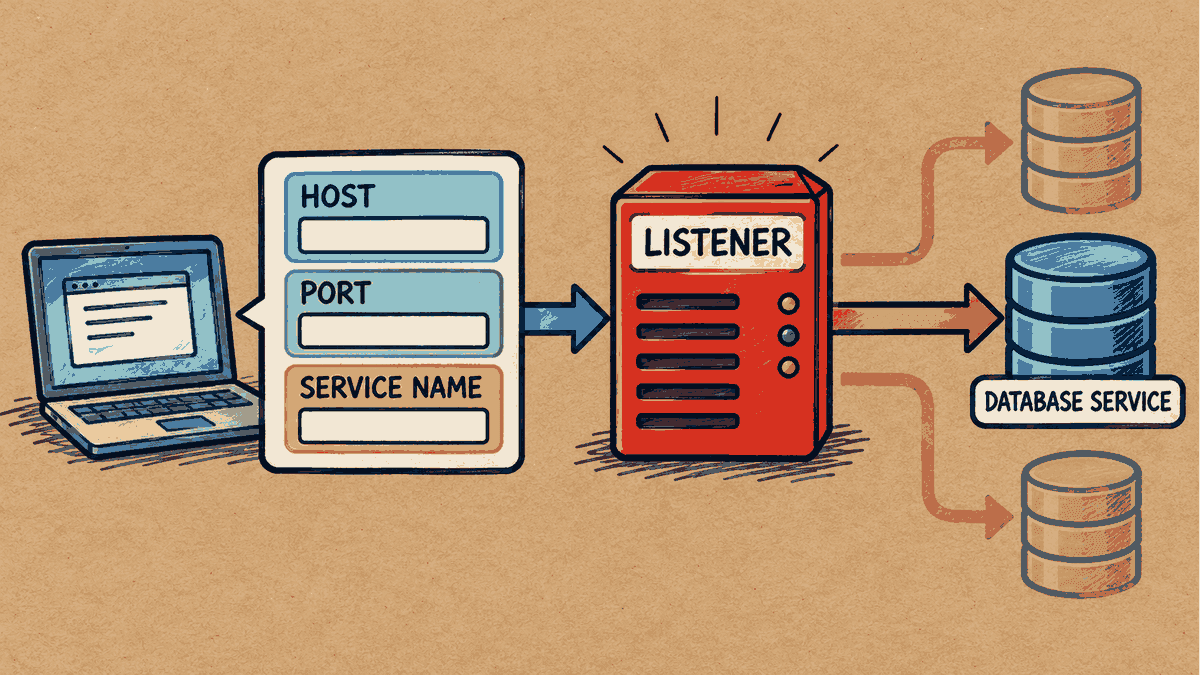
Concept illustration: Host and port identify the listener endpoint, while the service name identifies the service to connect to. A simplified view of how a connection is established.
Step 1: Identify and Match the Values You Need to Compare
In a real environment, an alias named PROD in tnsnames.ora might point to a Service Name of prod. Although the two names look similar, they serve different purposes. Always check how the actual values in your system map to one another rather than guessing from the alias alone.
Step 2: Check the Services Available in the Database
The DBA can check all active services within the PDB using this command:
SELECT name, network_name, pdb
FROM v$services
ORDER BY name;
NAME                      NETWORK_NAME                   PDB
------------------------- ------------------------------ ---------------
prod                      prod                           PROD

1 row selected.
Result: The output shows both the Service name and NETWORK_NAME as prod, associated with the PDB named PROD. These are the actual values to compare with the SERVICE_NAME configured in the application.
Step 3: Check the Context of a Working Session
If a session has connected successfully, you can check its environment, or Session Context, using this command:
SELECT sys_context('USERENV','SESSION_USER') AS session_user,
       sys_context('USERENV','SERVICE_NAME') AS service_name,
       sys_context('USERENV','CON_NAME') AS con_name
FROM dual;
SESSION_USER             SERVICE_NAME         CON_NAME
------------------------ -------------------- ------------
KB_MKT_LAB_20261014_R2   prod                 PROD

1 row selected.
Interpreting the result:
SERVICE_NAME=prodCON_NAME=PROD(the PDB name)SESSION_USER= the schema user currently in use
Why this helps: If the application connects successfully but some data appears to be missing or tables are not visible, checking the service and PDB names helps you rule out a connection to the wrong PDB or service first.
(Caution: This result confirms only the current session in which the query ran successfully. It does not verify the network path from another client machine that still cannot connect.)
Step 4: Give Your DBA the Information Needed to Investigate
A client that cannot connect to the database cannot run SQL commands to investigate. Ask the administrator to check the service from a session that has access, then compare those details with the Host, Port, TNS Alias, and full error message from the affected machine.
When reporting the problem:
- Provide complete details: Include the TNS Alias or Service Name used, the time the problem occurred, the source program or application, and the full error message (such as
ORA-12154orORA-12514). - Keep the technical terms distinct: SID, Instance Name, and Service Name mean different things and are not interchangeable.
- Keep passwords out of the report: Never include a password in a support ticket or chat.
Read more Oracle topics in the Oracle articles on teeDBA.com.
Related articles
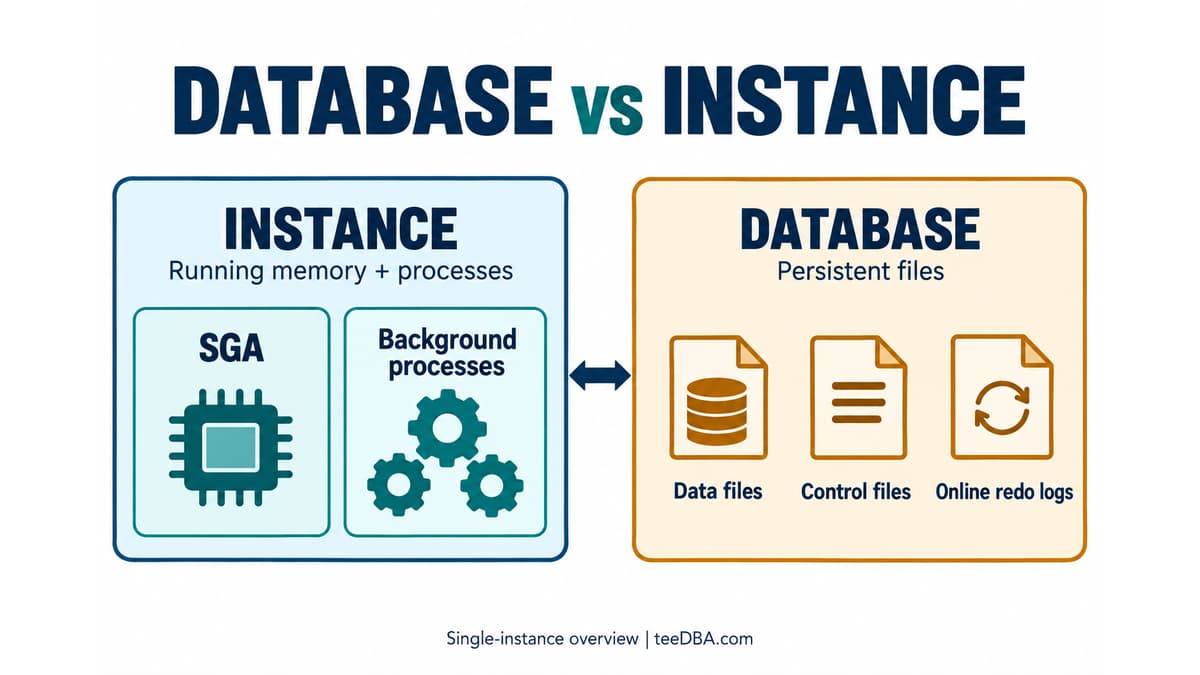
How Do an Oracle Database and an Instance Differ? See the Difference in One Diagram
Separate an Oracle Database's files from an Instance's memory and processes, then compare their status using v$instance and v$database.
Not Sure Where to Start with Oracle? Pick One Task
Not sure where to start with Oracle? Use three sample orders to practise SQL, then choose database and DBA topics that fit your work.
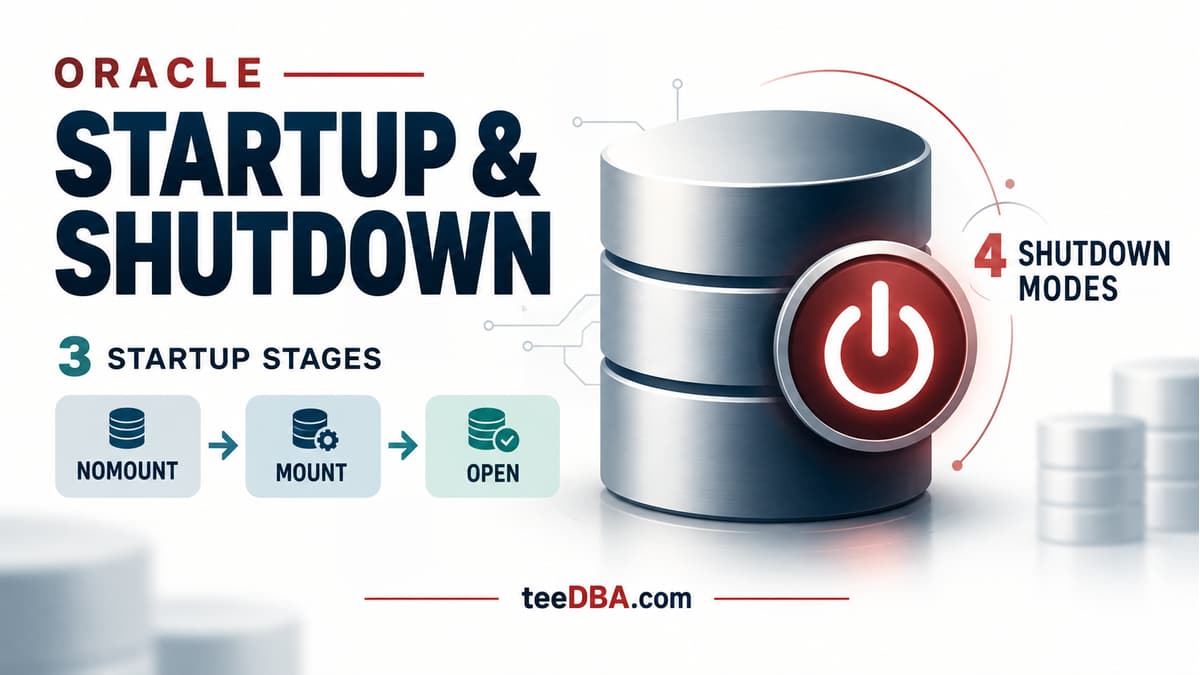
Oracle STARTUP and SHUTDOWN: what happens at each stage?
Understand NOMOUNT, MOUNT and OPEN, the four shutdown modes, and why SHUTDOWN ABORT requires instance recovery.